
Better site data. Smarter design. Directly in CAD.
AdaptiveSDS is a plugin for AutoCAD. Draw your site boundary on a map, then order a desktop utilities search or request a survey quote, without leaving your drawing.

Four steps from opening AutoCAD to having what you need.
Install and sign in
The AdaptiveSDS ribbon appears in AutoCAD. Sign in with your AdaptiveSDS account.
Select your area
Pick it on the map view, or use a closed polyline already in your drawing.
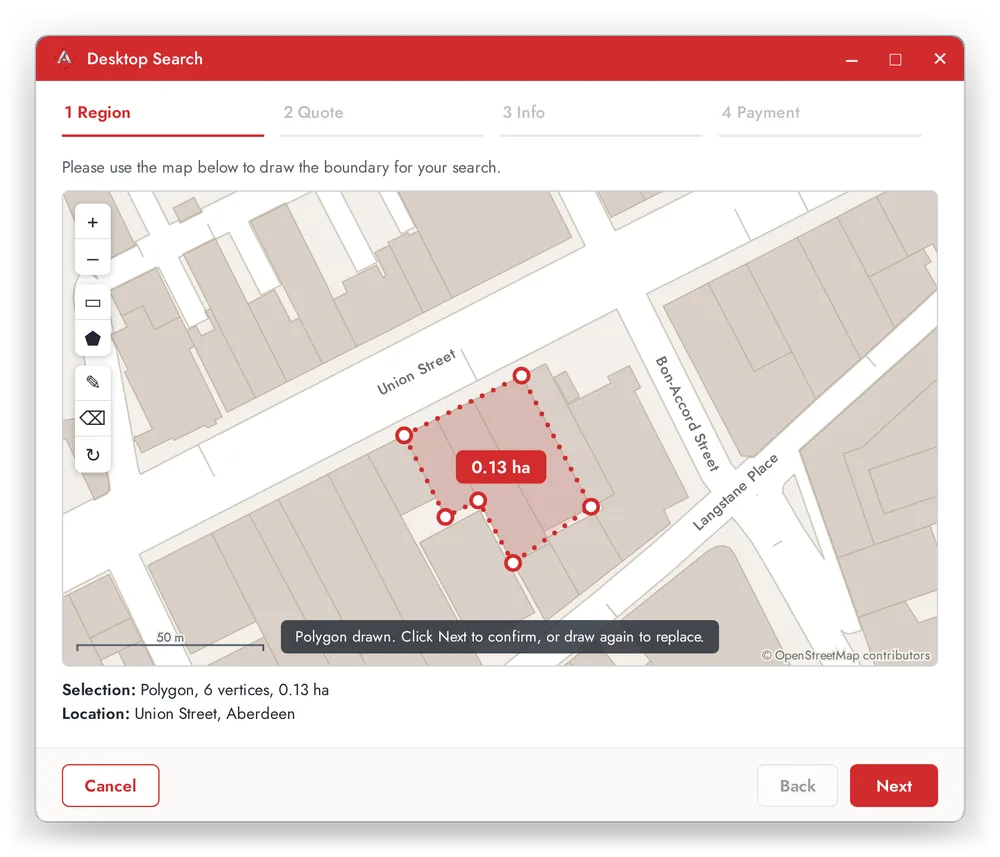
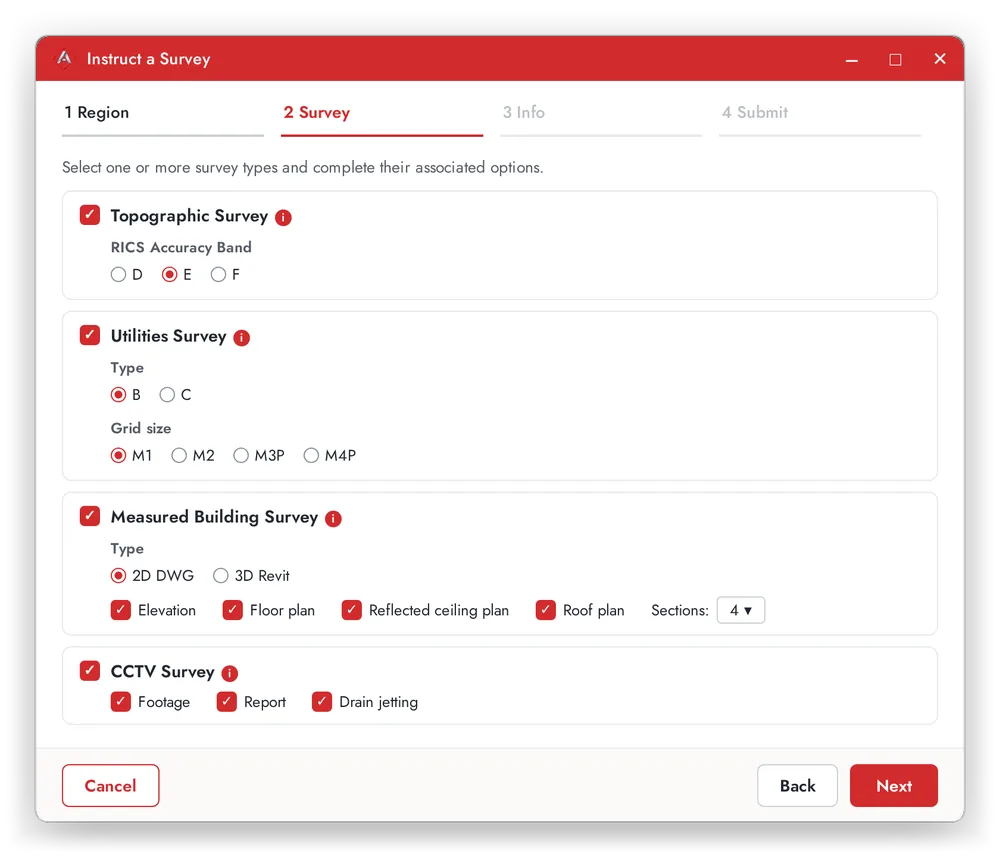
Choose what you need
Order a desktop utilities search, charged on the spot, or instruct a survey.
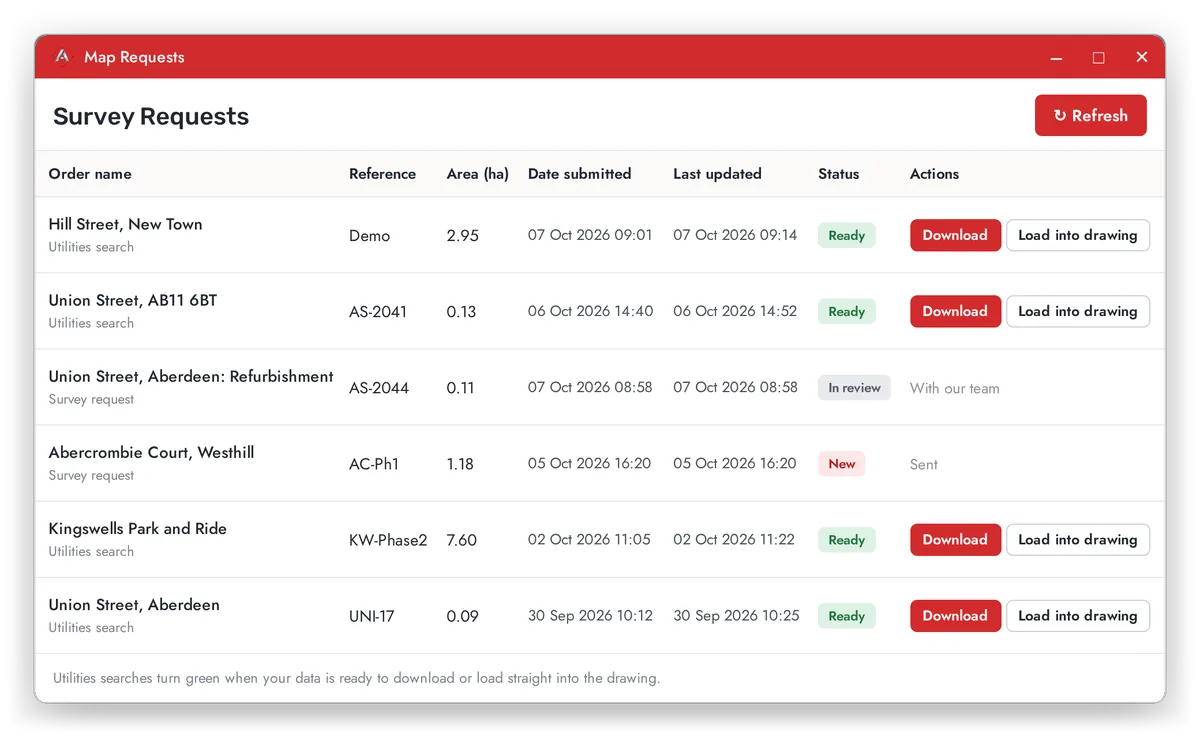
Get your results
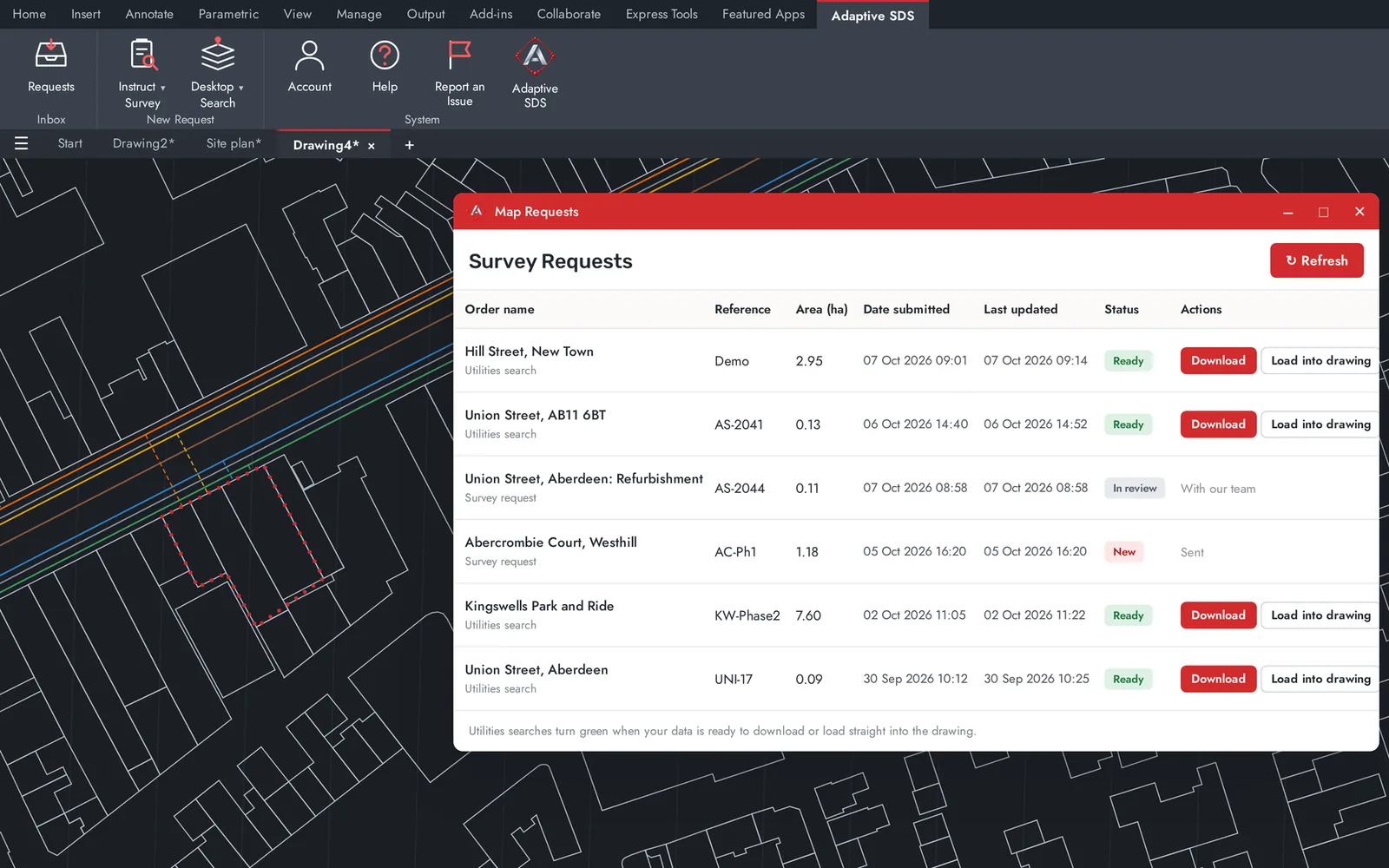
Searches appear under Requests and turn green when ready. Download the data and report, or load it into your drawing.
Seven steps become four.
Requesting a survey used to mean screenshots, Paint and a long email. Now it is one polygon.
Without AdaptiveSDS
-
1
Open Google Maps
-
2
Screenshot the site
-
3
Draw a red line in Paint
-
4
Save a PDF
-
5
Write a specification document
-
6
Add the boundary and save it
-
7
Email the surveyor
With AdaptiveSDS
-
1
Open CAD
-
2
Draw a polygon
-
3
Choose the survey type
-
4
Submit
The data lands in your drawing.
Utilities searches appear under the Requests button and turn green when ready. Download the data with its report, or load it straight in.
Two things you can do from the ribbon.
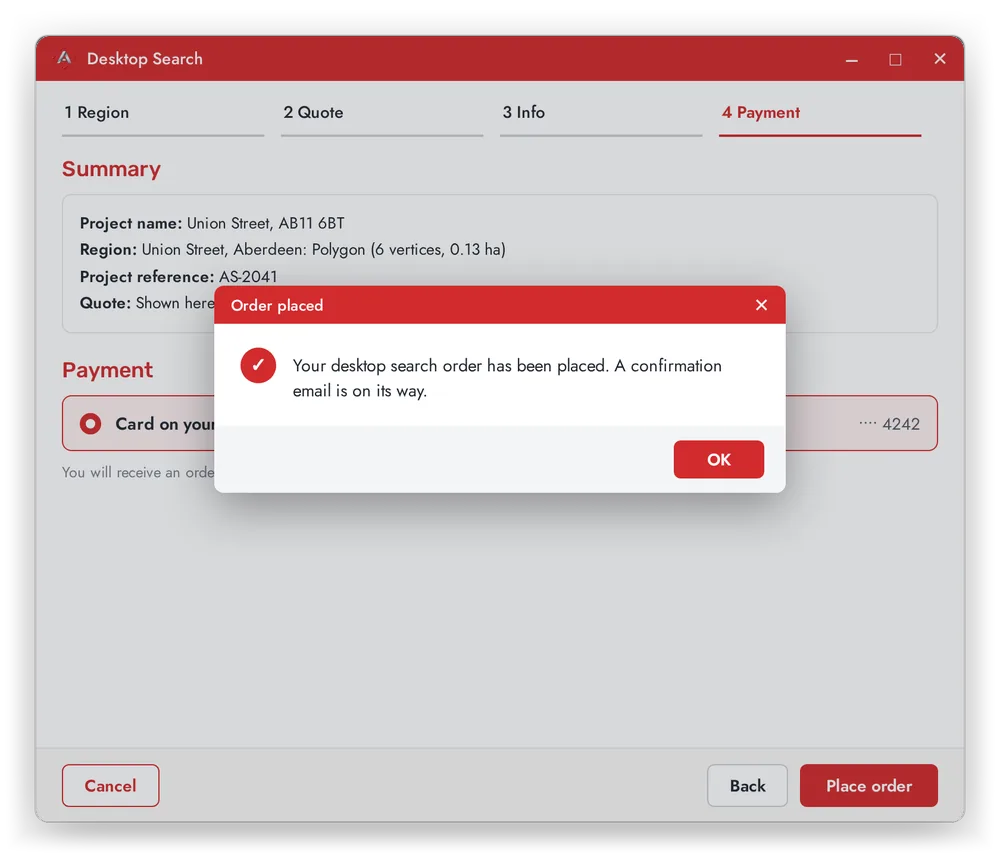
Desktop utilities search
Draw an area, see an instant price, approve, and receive the results in AutoCAD.
- Price worked out from the area you select
- Confirmation email when you order
- All your orders listed under Requests
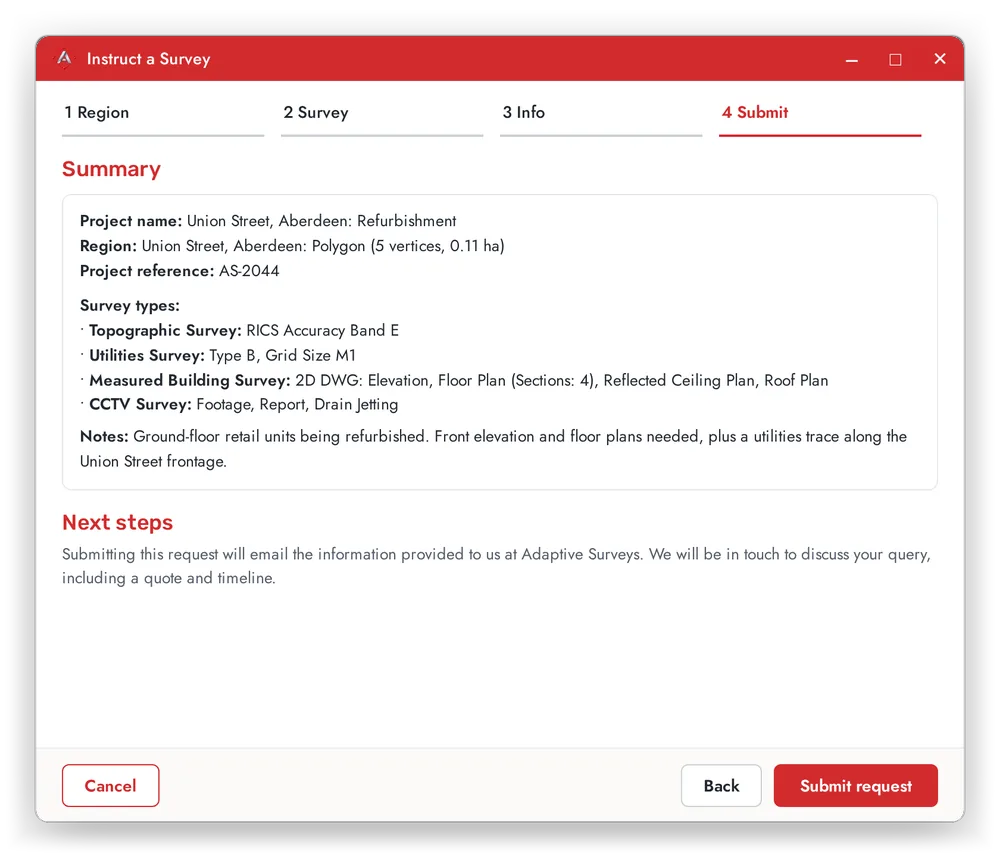
Instruct a survey
Send the boundary and project details to Adaptive Surveys and get a quote within 48 hours.
- Set survey types, so nothing is missed
- Reviewed by the Adaptive Surveys team
We use desktop utility searches ourselves, and getting the data and making sense of it was always a pain. We thought there had to be a better way. This is it.
Who it is for
Free to download. Then sign in from AutoCAD.
AdaptiveSDS is free to download. Install the Windows plugin, then sign in from inside AutoCAD with your AdaptiveSDS credentials.